Content Versioning
Content versioning allows teams to create and manage different versions of their content. There are several reasons to use content versioning, including drafting content without publishing it, and more ways to collaborate effectively.
Concepts
- Version: A version of an item that allows you to safely make changes without affecting the published item. Versions can be published to become the new published item.
- Published: The published version of your content that is live and visible to users. All new versions are created from the published item. This version is identified by the reserved key
published(the keymainalso works and is kept for backward compatibility). - Draft: a reserved global version that is automatically available when content versioning is enabled. The draft version provides a dedicated workspace for making changes before publishing, and appears empty until edits are saved.
- Publish: when a version is published, it becomes the published item that is displayed to users.
- Revision: revisions are individual changes to items made within a version or the published item. Directus keeps track of all changes made, so you're able to view the history of modifications and revert to a previous state.
The version field is a dynamic variable can be added to the live preview URL so you can preview a specific version of an item. Check out more about live previews.
Setting Up Content Versioning
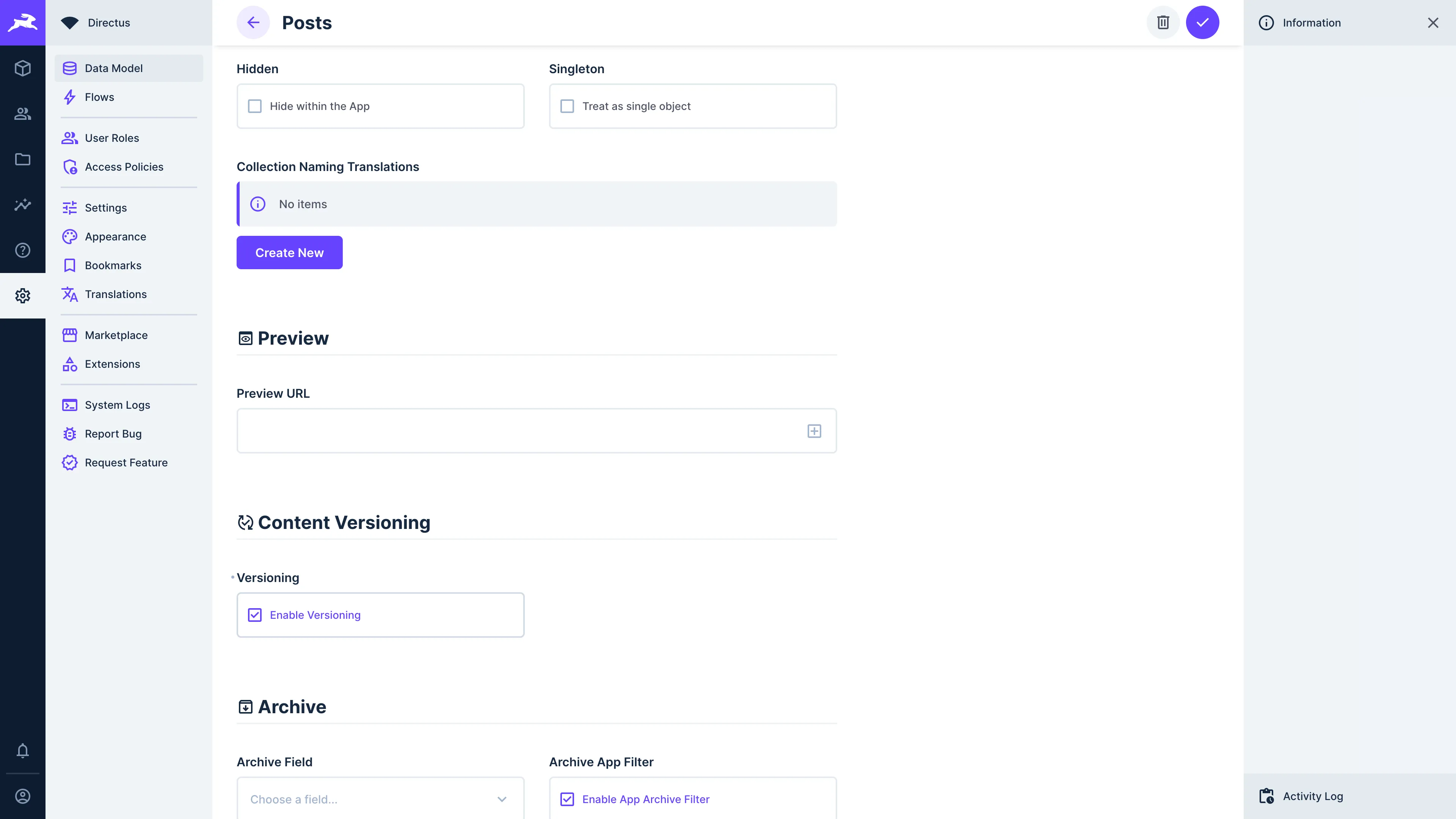
Navigate to Settings > Data Model, select the collection that you want to enable content versioning for, and scroll down to the content versioning section. Toggle "Enable Versions" and save your data model.
Working with the Draft Version
When content versioning is enabled for a collection, a global draft version is automatically available for all items. This reserved version provides a safe workspace for preparing changes before publishing to your live content.
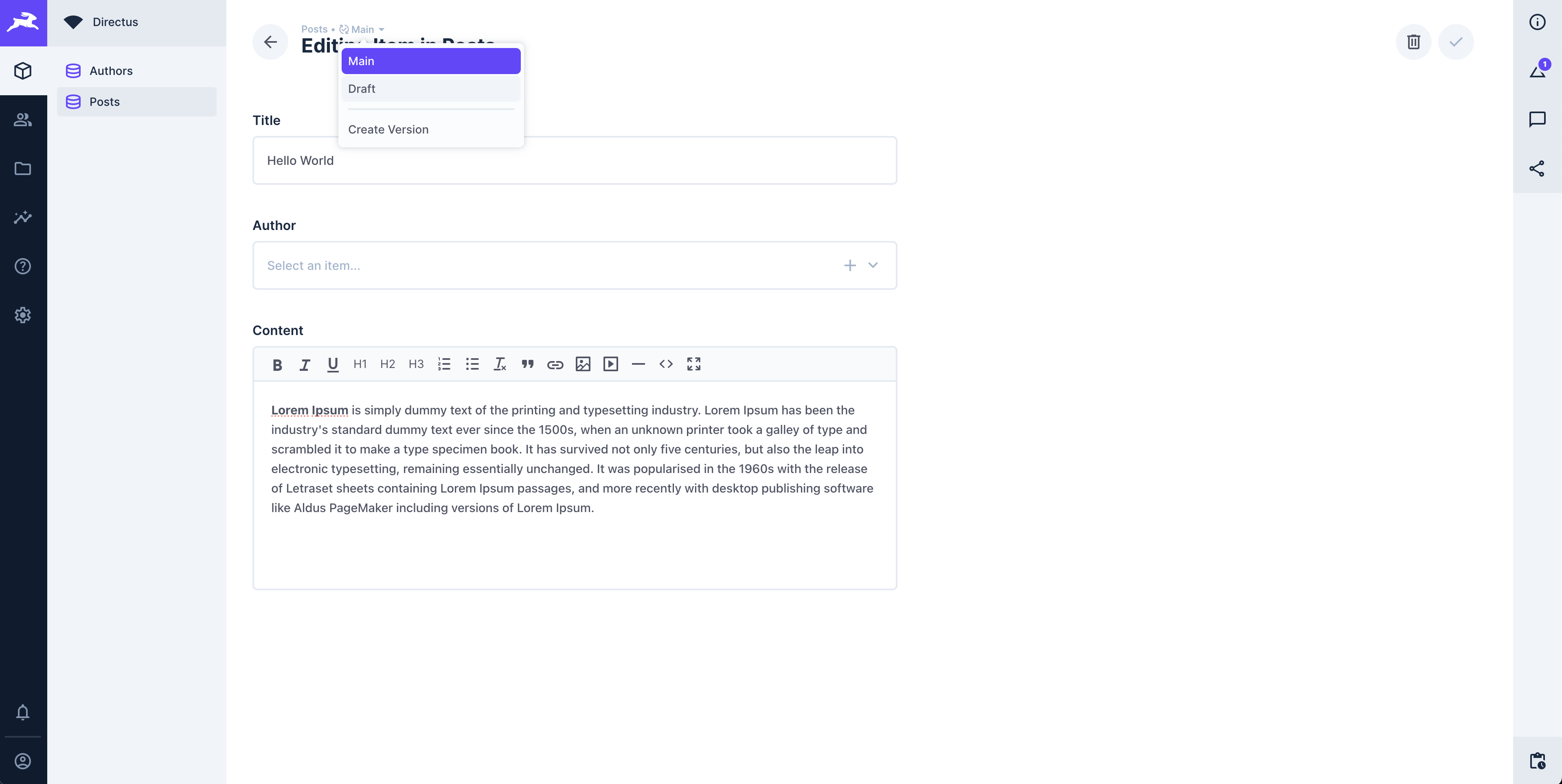
Understanding the Draft Version
The draft version:
- Appears automatically in the version list for all items with versioning enabled
- Shows as empty until you make edits
- Transforms from a virtual placeholder to an actual version when you save changes
- Uses "draft" as a reserved version key that cannot be used for custom versions
published, main, and draft are all reserved and cannot be used for custom versions. Attempting to create a version with any of these keys returns a 400 error.The reserved global "draft" version was introduced in Directus 11.16.0. If you have an existing version with the key
draft and a custom name other than "Draft", the display name will be standardized to "Draft" (i.e. transformed) to support the new global versioning feature. The version content and functionality remain unchanged.Using Draft in the Visual Editor
The Visual Editor integrates seamlessly with the draft version, allowing you to preview and edit changes in context:
- Switch versions using the dropdown in the Visual Editor header to toggle between "Published" and "Draft"
- Edit items that have content in the active version – items are only directly editable when they exist in the selected version
- Preview changes using the version-aware preview URL before publishing
- Fallback behavior - items without content in the selected version display their published version content (read-only)
Creating New Items as Drafts
In a versioned collection, clicking "Create Item" (the + button) automatically puts you into draft context. Instead of creating the item immediately, Directus opens the form in the draft version - no published item exists yet.
Saving an Itemless Draft
Fill in your fields and save as normal. On first save, Directus creates a draft version with no published item backing it. The item does not yet exist in the collection.
You can save as many times as needed. Required fields do not need to be complete at this stage - see Making Changes to a Version.
Publishing an Itemless Draft
When you are ready to publish, select "Publish Version" from the version dropdown. Because there is no existing item to compare against, Directus skips the comparison modal and creates the item directly.
After publishing, you are redirected to the newly created item in its main version.
Creating a New Version
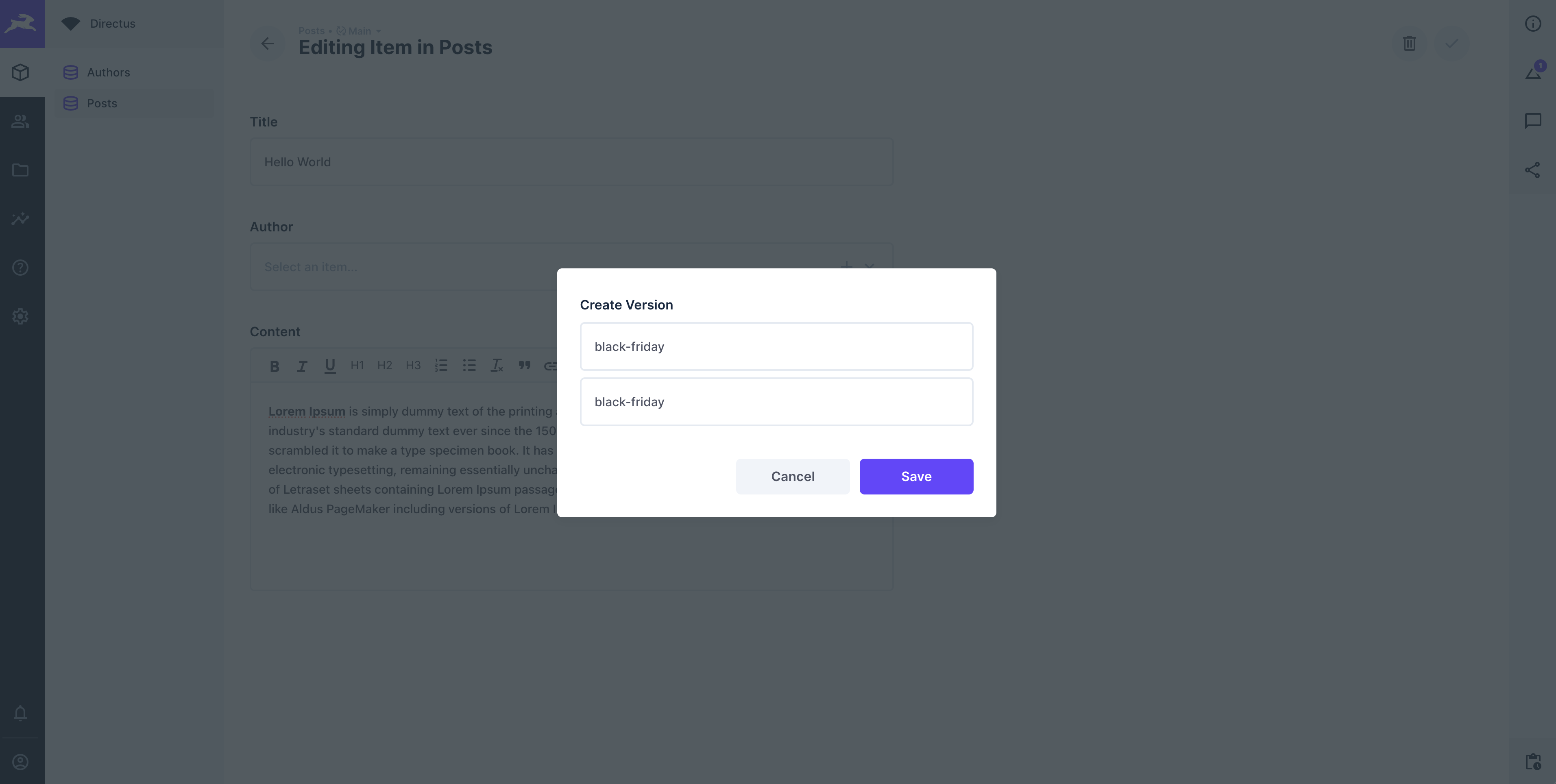
Open an item within your versioned collection. At the top of the item view, you will notice a dropdown with the published content version displayed as "Published". Select "Create Version" and provide a key and a name for the new version. You can then save your new version.
All new versions originate from the published item. This implies that the published item acts as the single source of truth for other versions. The draft version is always available and doesn't need to be manually created.
Making Changes to a Version
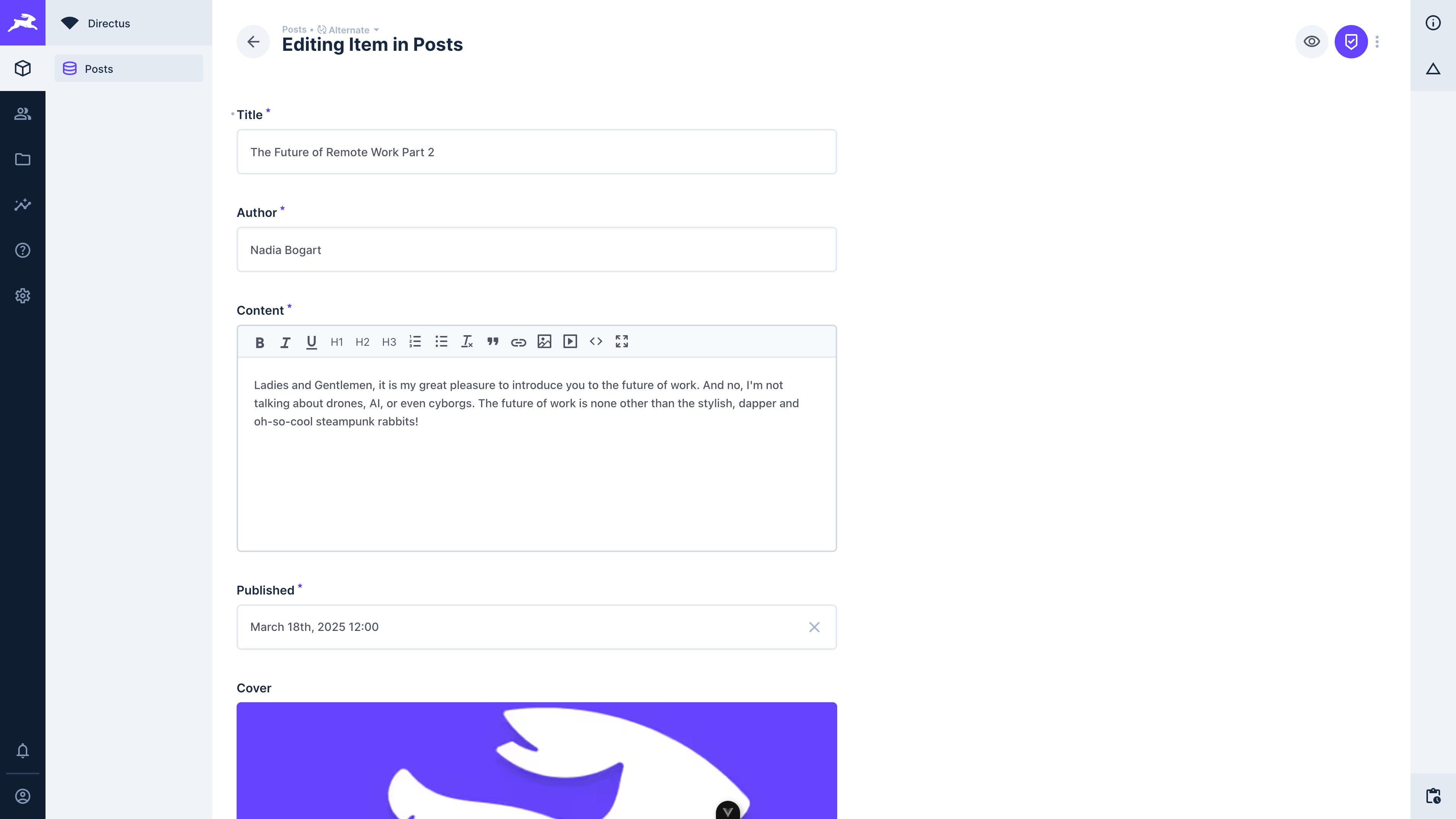
Open the item in the newly created version, and make the desired edits to the item's content.
Upon saving the changes, you'll notice that the main item remains unaffected, while the changes are reflected only in the modified version.
Comparing and Publishing a Version
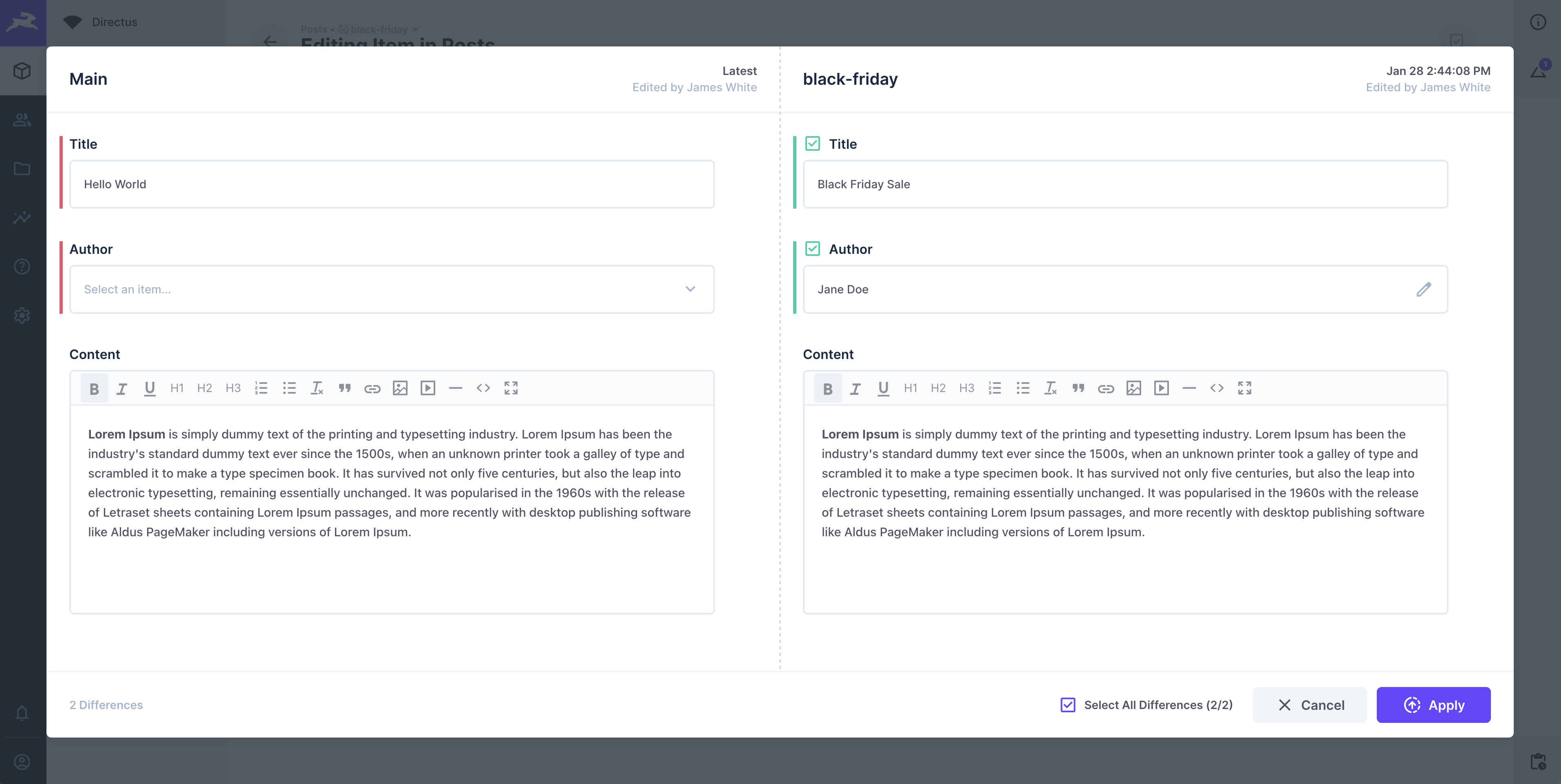
Publishing a version makes it the published (current) version of your content.
How to Publish a Version
- Open the version you want to publish
- Select the "Publish Version" option from the dropdown.
- In the comparison modal, review the changes:
- Fields with differences from the published item are highlighted with color indicators
- Review each highlighted field to understand what will change
- Accept or reject individual changes as needed
- Click "Publish" to finalize and make this version the new main item.
Once published, this version becomes the active content, and the previous published item is preserved in the version history.
After publishing a version, you can choose to keep or delete the version. For the global draft version, you'll see options to "Discard Edits" or "Keep Edits" instead of "Delete Version" or "Keep Version".
You have the option to integrate Content Versioning through the API. To learn how to accomplish this, please refer to our API reference documentation.
Previewing Versions
Both Live Preview and the Visual Editor support version-aware previews, but they are configured differently.
Live Preview
Live Preview is configured per-collection in Settings → Data Model.
- Select your collection and find the Preview URL field
- Include the
{{$version}}variable in the URL - Example:
https://your-site.com/{{slug}}?preview=true&version={{$version}}
Directus passes the selected version key as the version query parameter. Your frontend must read this and fetch versioned content from the API (e.g. /items/posts/42?version=draft). See Live Preview for full setup details.
Visual Editor
The Visual Editor is configured globally in Settings → Visual Editor.
- Navigate to Settings → Visual Editor
- Include the
{{$version}}template variable in your URL - Example:
https://your-site.com/preview?version={{$version}}
The {{$version}} variable passes the selected version key to your website and ensures edits are saved to the selected version. See the Studio Module documentation for full setup details.
Revisions and Content Versioning
Under the hood, revisions are stored in the directus_revisions collection. In bigger projects this collection
can get large.
Managing Revision Retention
You can manage revision retention in two ways:
- Automatic Retention Policies: Configure environment variables to automatically control how long revisions are kept. This allows you to balance the need for historical data with storage and performance considerations. See the Log Retention documentation for configuration options.
- Manual Cleanup: Periodically remove some or all data from the
directus_revisionscollection. Note that manual deletion may unintentionally remove content versions that are still in use, so exercise caution when performing bulk deletions.
When implementing retention policies, consider your team's workflow and how far back you may need to revert changes before removing older revisions.
Viewing and Restoring Revisions
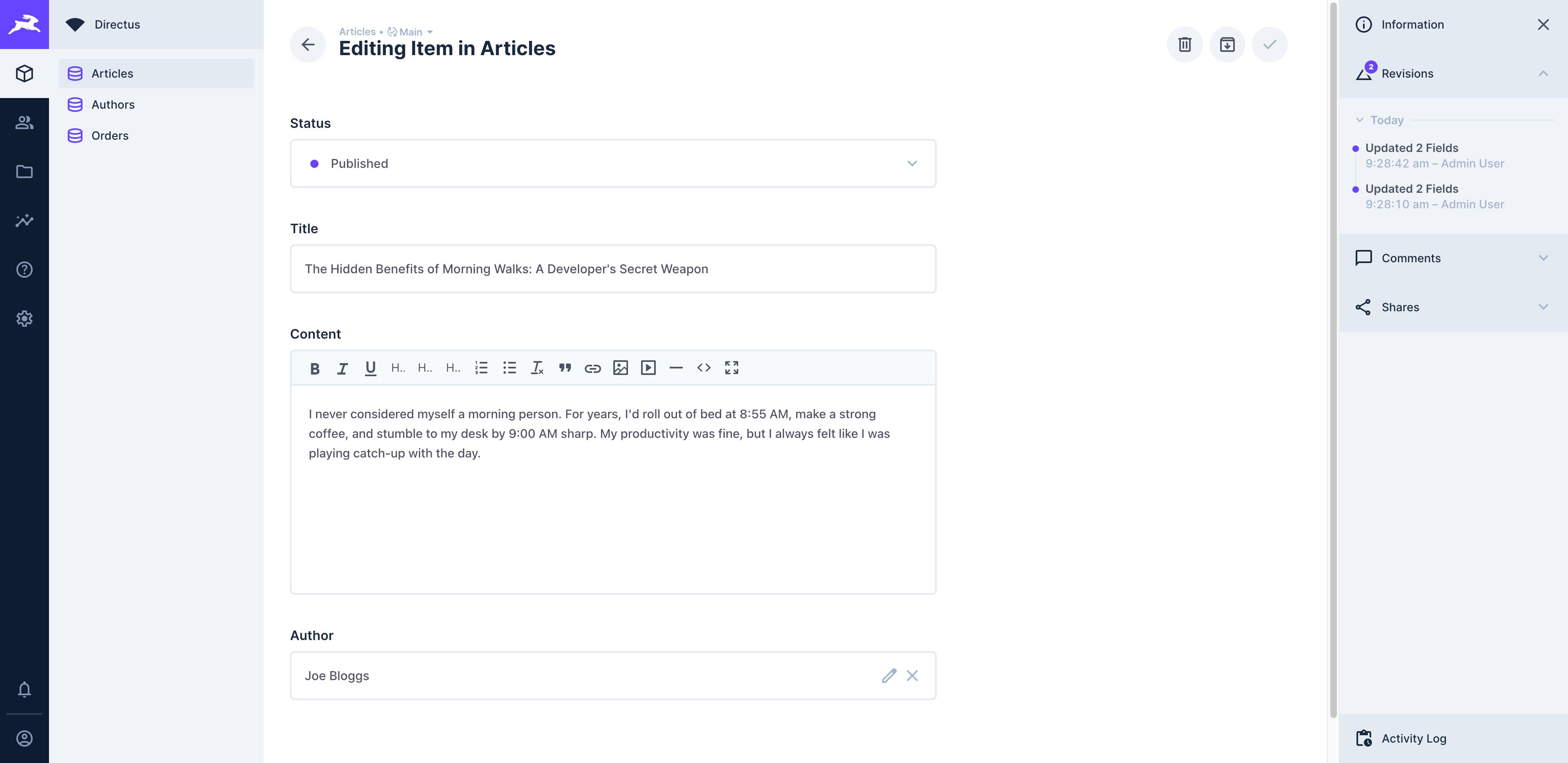
You can view revisions for an item within the right sidebar of the Studio. How many fields were updated in each revision is clarified via the label e.g. "Updated 2 Fields". Clicking on a revision will launch the content comparison modal.
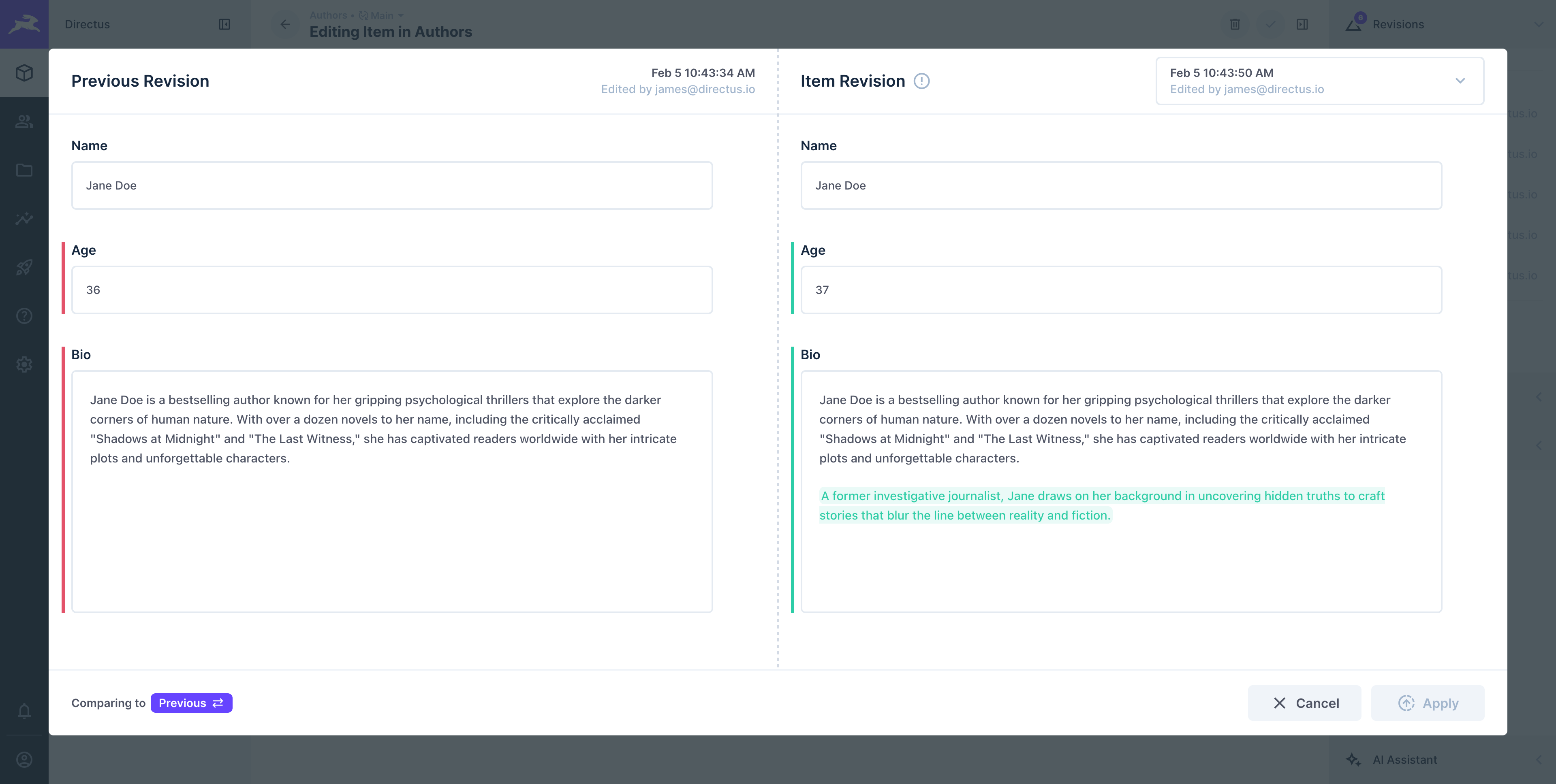
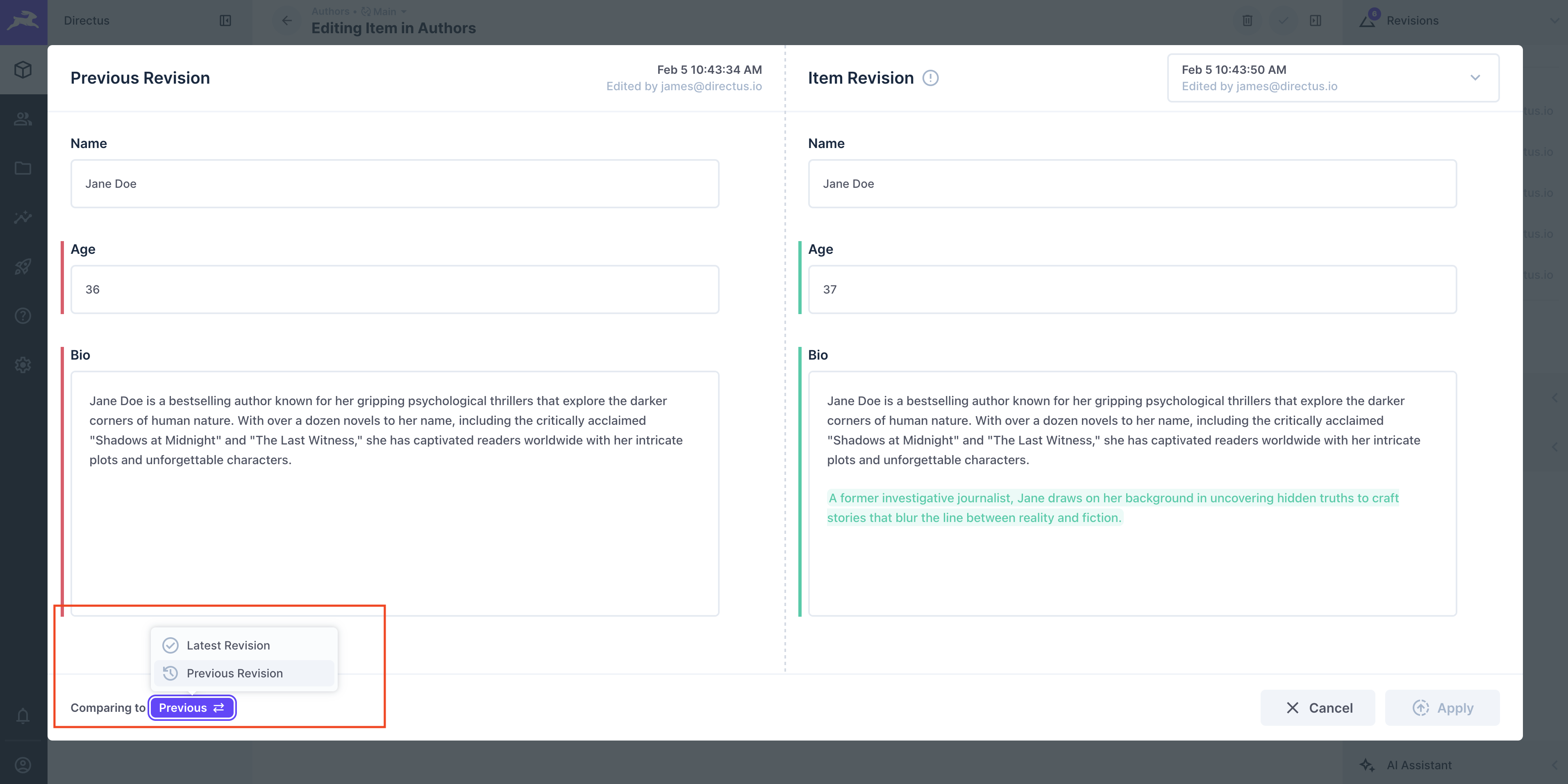
Comparing to Previous Revision
Upon selecting a revision, you will see the differences between the previous revision (indicated on the left) and the current revision (indicated on the right), showing what changed in this revision.
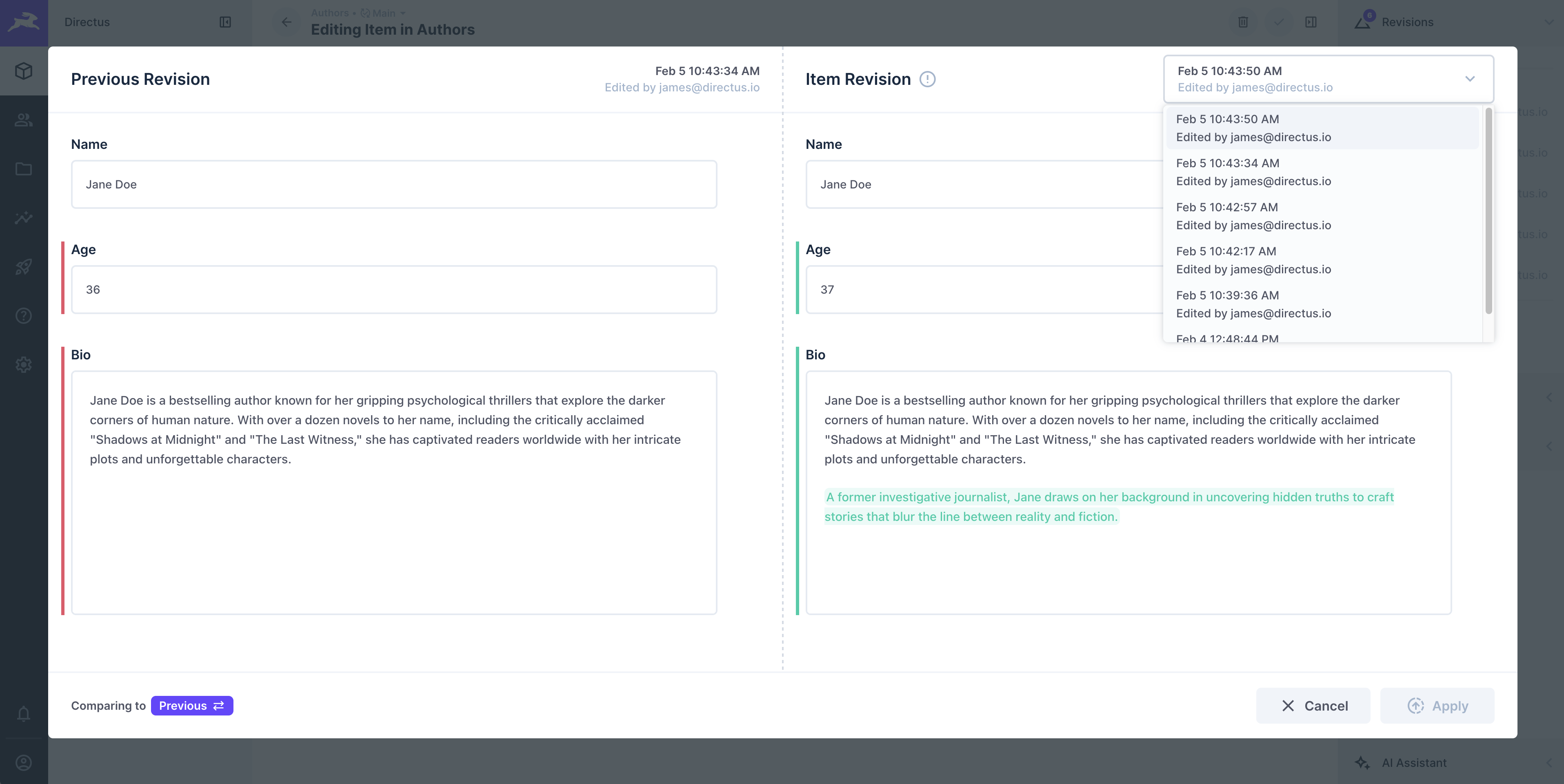
Note that once the revisions comparison modal is open, you can change the revision selection via the dropdown menu at the top right of the modal.
Comparing to Latest Revision
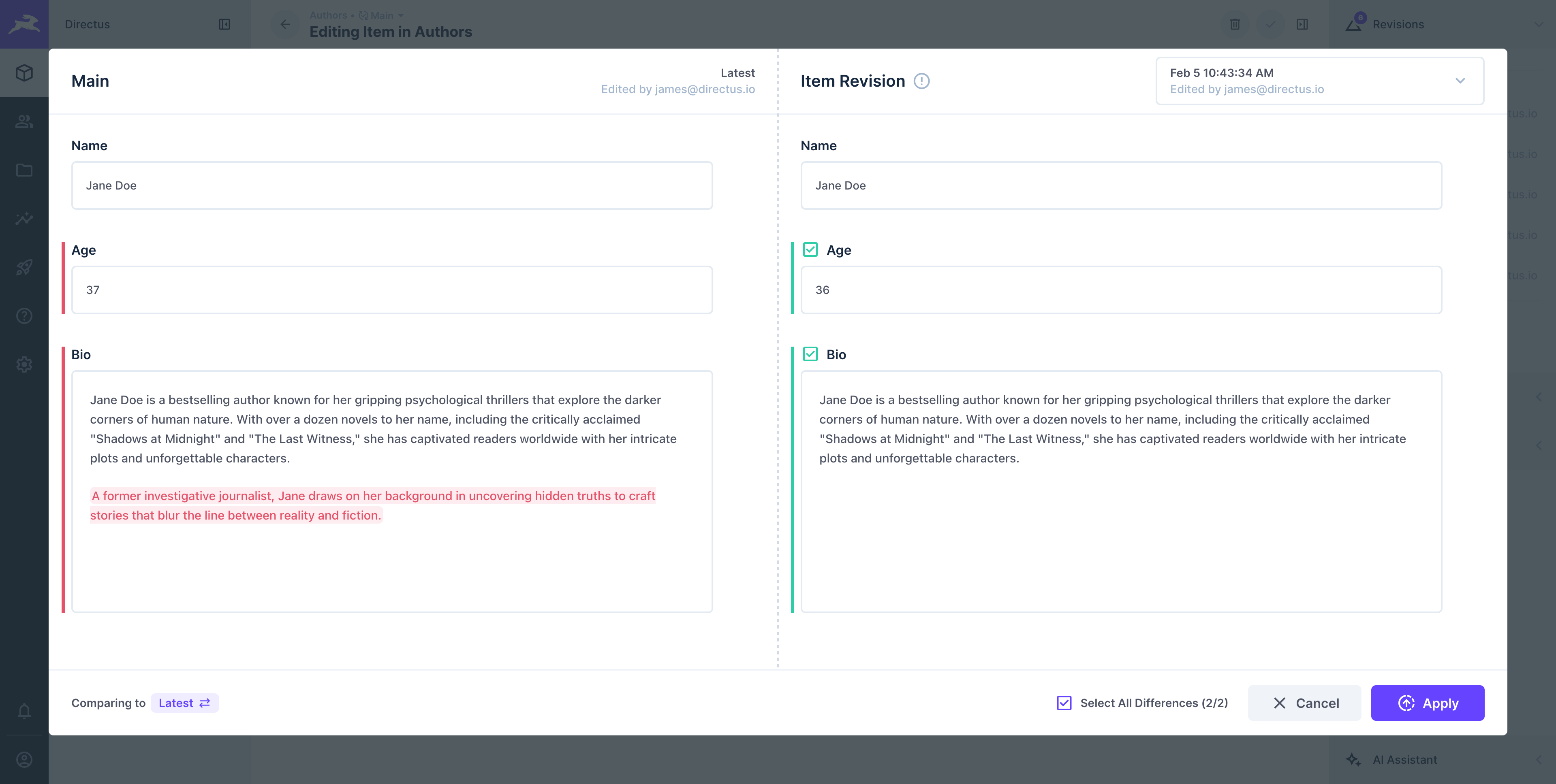
Use the comparison toggle to switch between comparing the selected revision against its previous revision or against the latest revision.
When comparing against the latest revision, you can click Apply to restore the selected revision. This allows you to preview exactly what will change before committing to the restoration.
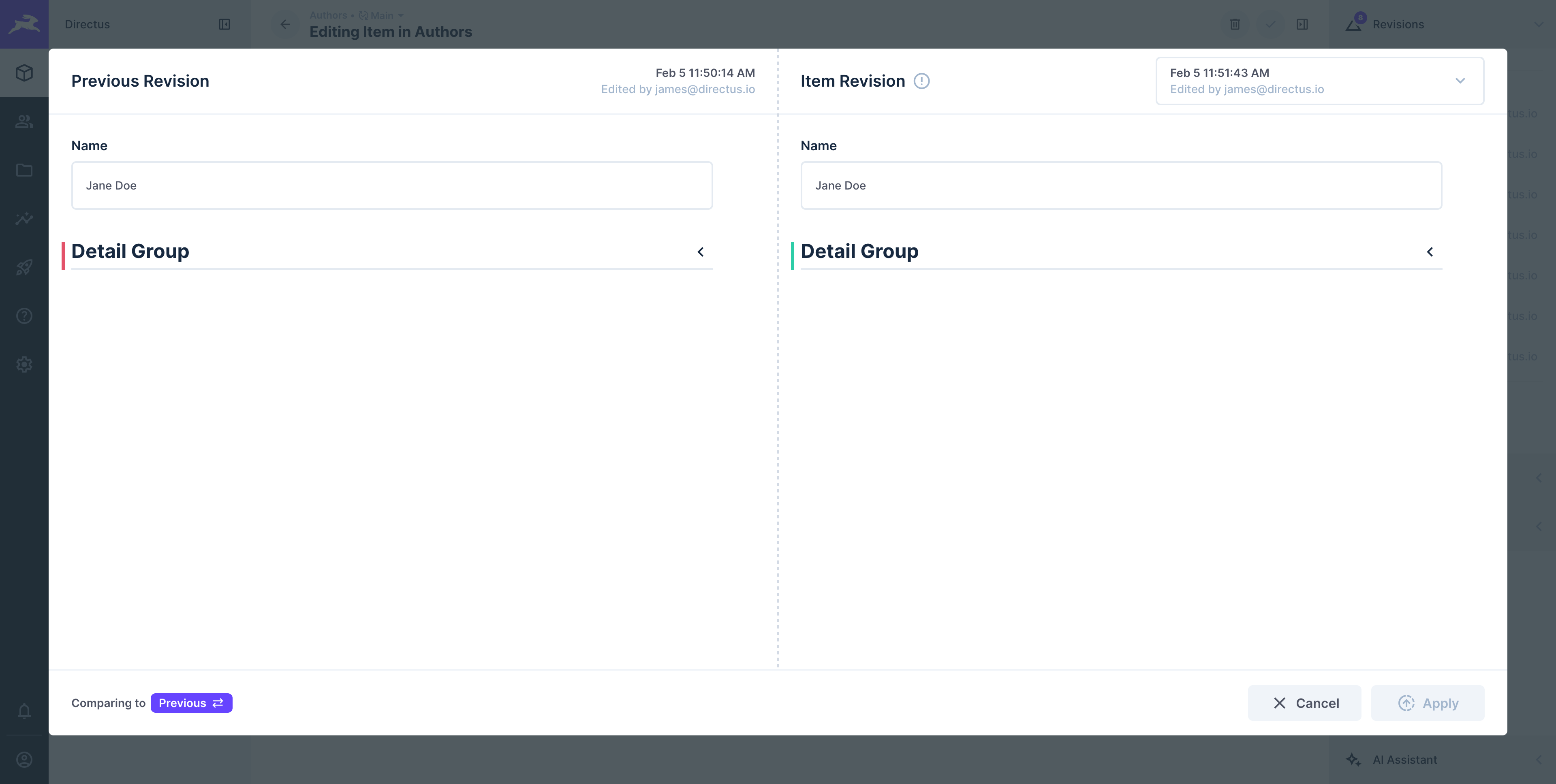
Collapsed Group Interface
When a collapsed group interface contains fields with updates or differences, a diff indicator appears next to the group name.
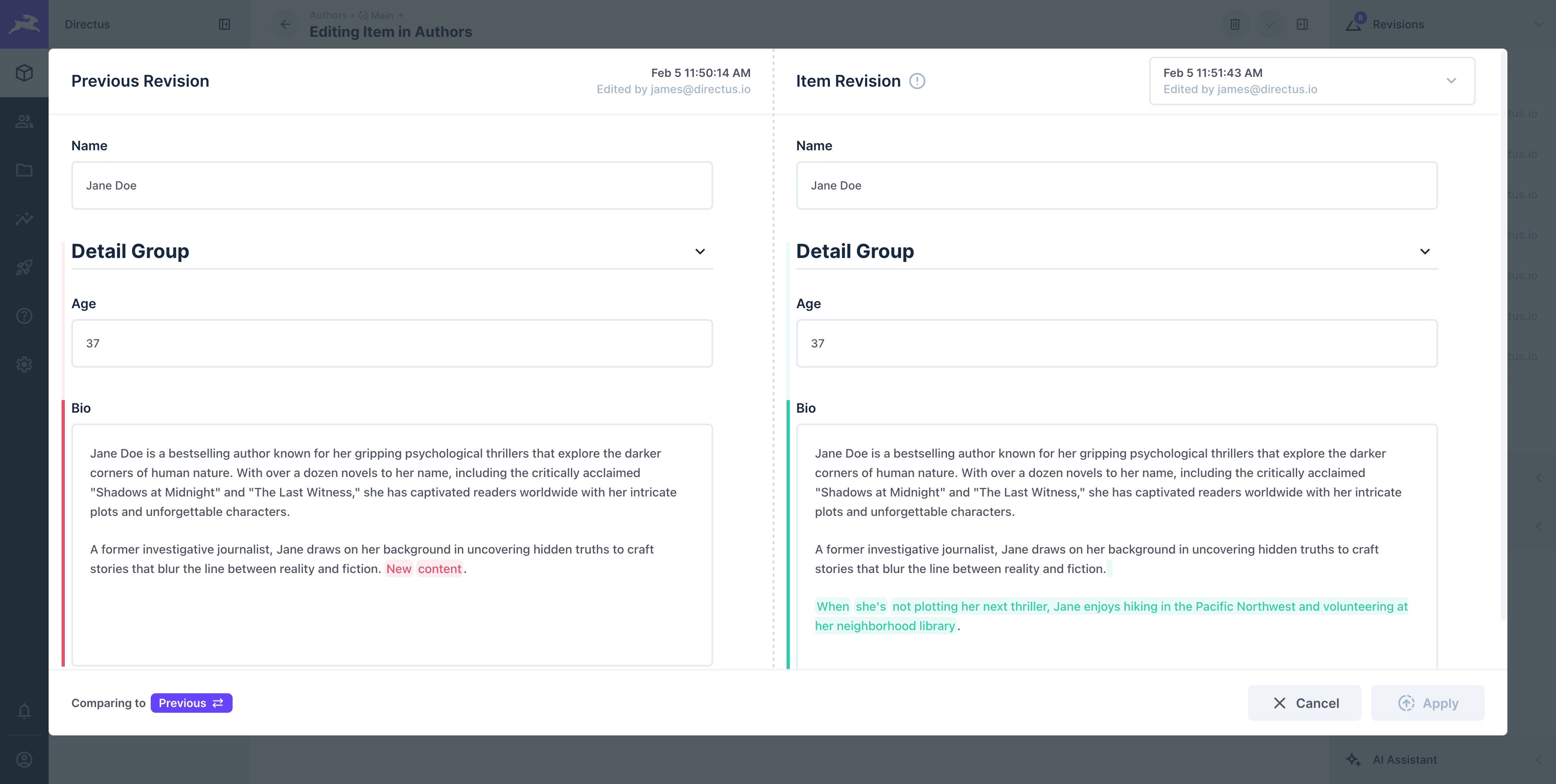
When expanded, diff indicators are displayed next to each field in the group that has updates or differences.
API Response Structure
When working with content versioning through the API, it's important to understand how items and their versions are represented differently.
Standard Item Response
When fetching items from a collection endpoint /items/{collection}, you receive the published version data:
{
  "data": [
    {
      "id": 1,
      "name": "Lion King",
      "author": 1,
      "release_date": "2025-10-01T12:00:00"
    }
  ]
}
Version Response
When fetching versions from the /versions/{version} endpoint, each version contains metadata and a delta object that shows the changes made in that version:
{
    "data": {
        "id": "0e0a8110-3cab-4bfb-93d5-17662588d0d4",
        "key": "version-x",
        "name": "version-x",
        "collection": "books",
        "item": "1",
        "hash": "3284251037784c38c5bada022e579d3a484b4a09",
        "date_created": "2025-10-14T08:58:21.279Z",
        "date_updated": "2025-10-14T09:02:55.682Z",
        "user_created": "ec5f6af5-b113-4b0a-9792-67596a547fd8",
        "user_updated": "ec5f6af5-b113-4b0a-9792-67596a547fd8",
        "delta": {
            "id": "1",
            "author": 2,
            "release_date": "2025-10-05T12:00:00"
        }
    }
}
The delta object contains only the modified fields, making it easy to see exactly what changed in each version compared to the published item at the time that version was created.
Get once-a-month release notes & real‑world code tips...no fluff. 🐰